Using LogicWorks 5 at GMCS 425
Attention
IMPORTANT STEP: If you don’t care to read this, skip to Saving your circuit files.
The lab computers in GMCS 425 include LogicWorks 5 installed on all the computers, so you don’t necessarily need to purchase a LogicWorks license yourself if you want to complete the labs.
You can find GMCS 425 on the fourth floor of this building on campus. From the main entrance of GMCS, you just need to ascend one floor.
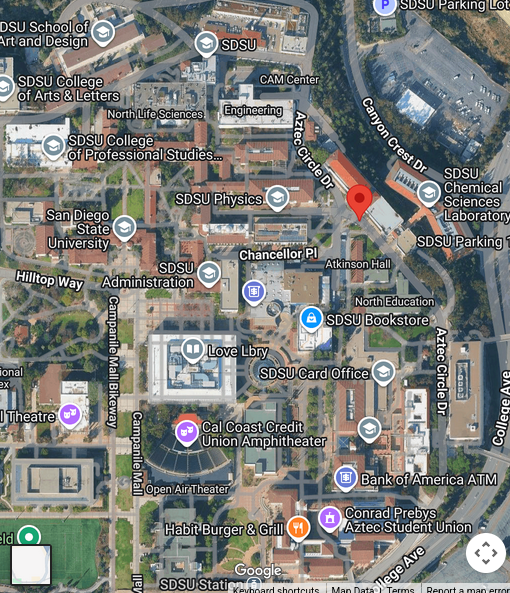
This room is open during office hours. Please refer to your TA’s posted office hours for when you may use GMCS to complete your labs.
How to operate the GMCS computers
Where to find your computer
Choose any desk to start your work.
Your computers are usually found below the desk in these cubbies. You can pull them out by pulling on the handle on the top of the computer’s neck.
Attention
Do not pull on the monitor itself.
If the computer monitor is not turning on, you should be able to find the PC associated with the computer on the side. The top PC corresponds to the left cubby and the bottom to the right. Just turn on the power button on your PC and your monitor and wait. It may take a couple minutes for the screen to light up.
Logging in to your computer
Once started, you can log into the GMCS computer using your San Diego State University LDAP credentials. These credentials are the same that you use to log into the eduroam Wi-Fi network and Microsoft 365. You will not be asked to use two-factor authentication.
Using LogicWorks 5
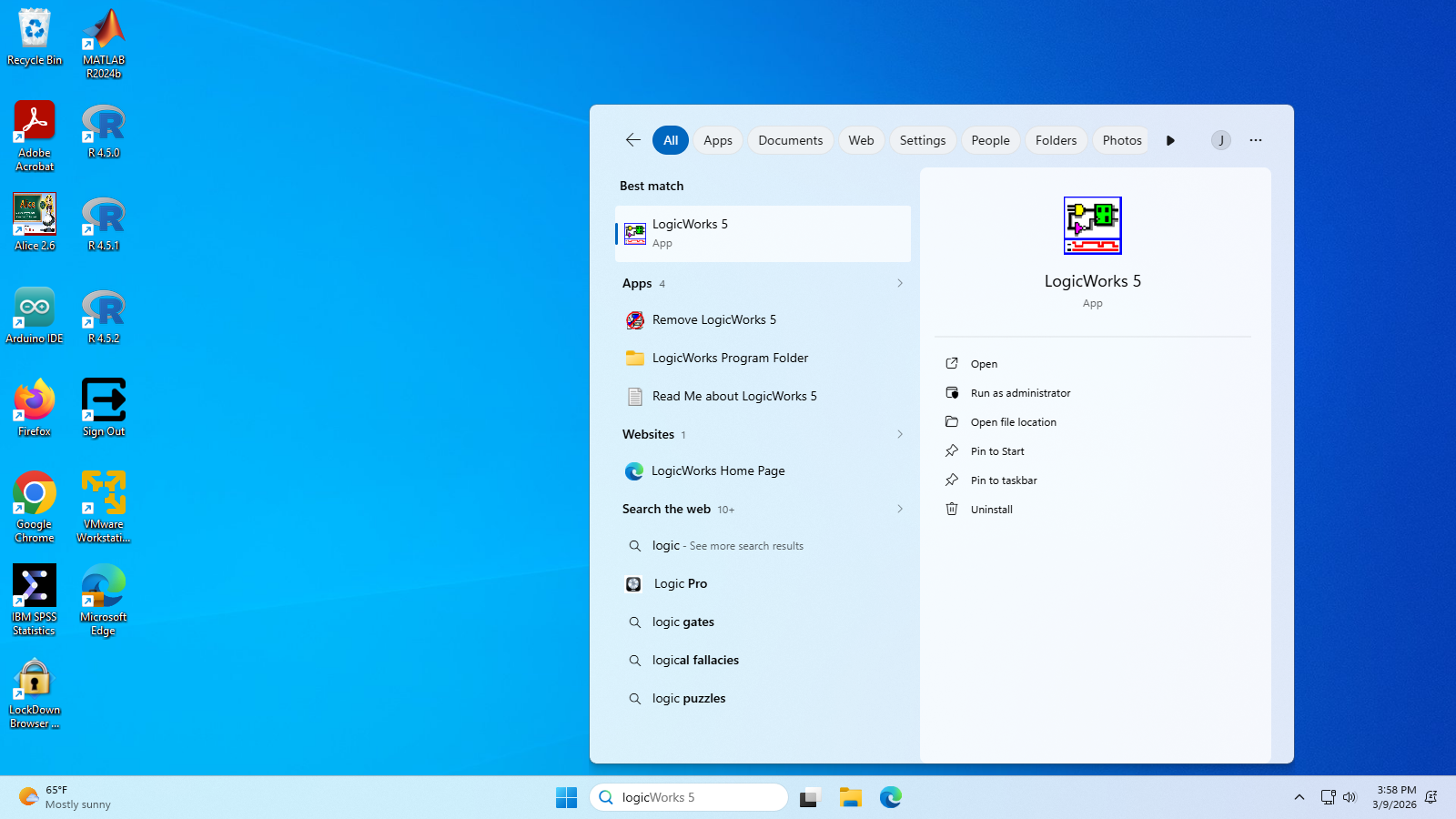
Once logged in, you can access LogicWorks 5 by searching it using the search bar. It is not on your desktop screen by default, but you may add it by right-clicking on the LogicWorks 5 entry and adding it.
Saving your circuit files
Attention
Do not save your circuit files in the default path. If you already saved your circuit in the default folder, it will not be where you expect in Program Files (x86).
You can find your files in %LOCALAPPDATA/VirtualStore/Program Files (x86)/LogicWorks 5/. To reach this directory, you can open Explorer and paste that path into the path bar. Move the files that you saved in this directory to your newly-created folder in “Documents”.
Select “Documents”, create a new folder with a memorable name (e.g. “Lab 4 Circuits”), and save your circuit in that folder.
Preserving your files online
The lab computers may be wiped at any time. Do not trust that your circuits will be there the next time you have access to the lab. Make sure you save your circuits to somewhere safe, like a USB thumb drive, on Google Drive, or on OneDrive.
OneDrive is the option of least resistance out of the three.
Saving your files on OneDrive
San Diego State University gives you free OneDrive storage as part of the Microsoft 365 package. OneDrive may not be enabled on the lab computers, but you can still upload files to OneDrive using a browser.
Since you are already logged into your Microsoft account by logging into Windows, you can open Microsoft Edge and be automatically logged into Microsoft 365. You will need to complete two-factor authentication through Duo for this login.
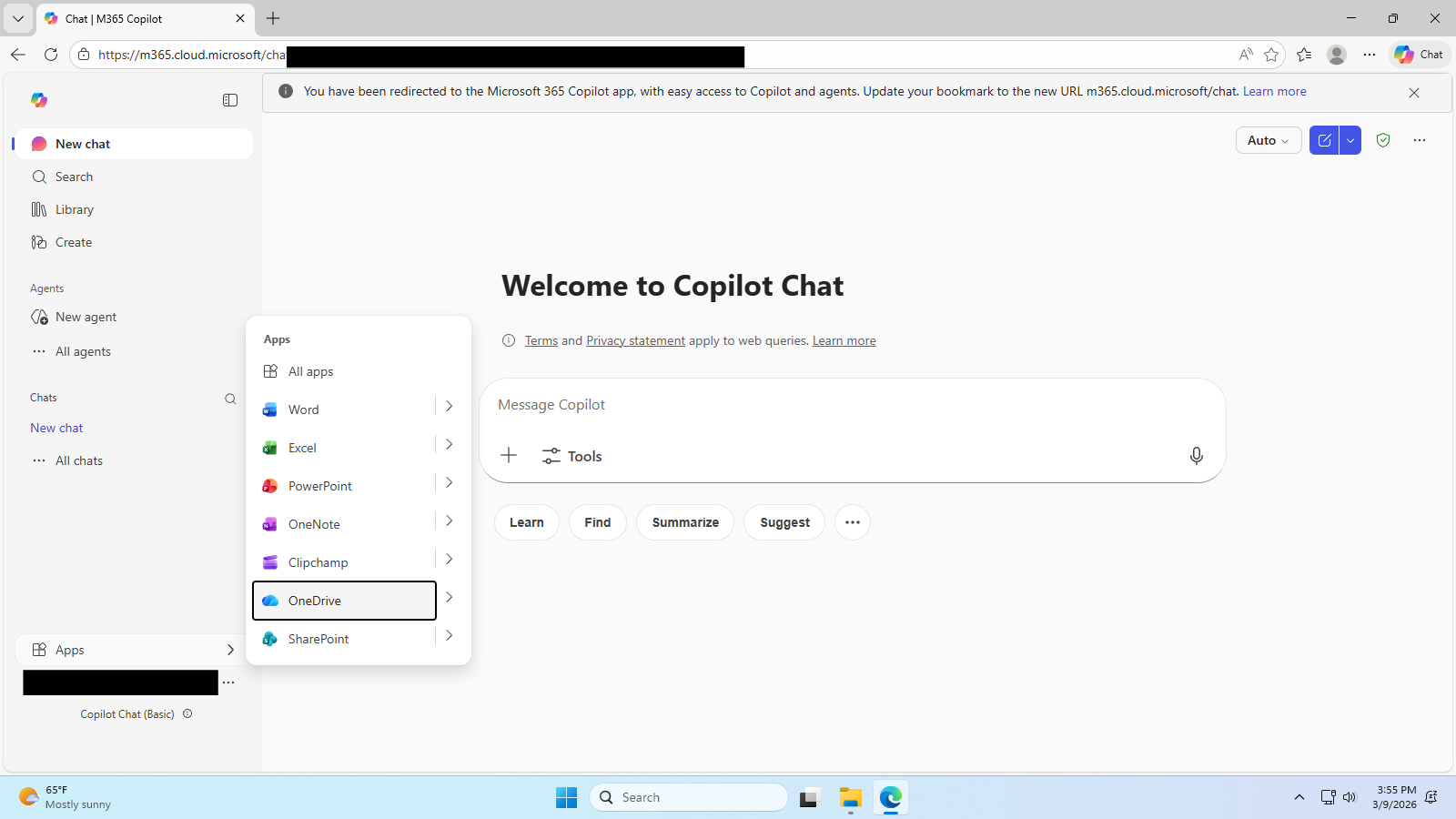
You can then create a folder in OneDrive and upload your project artifacts. You will want to upload your .cct and .clf files. Make sure to check with the lab documentation for other artifacts that you may need.
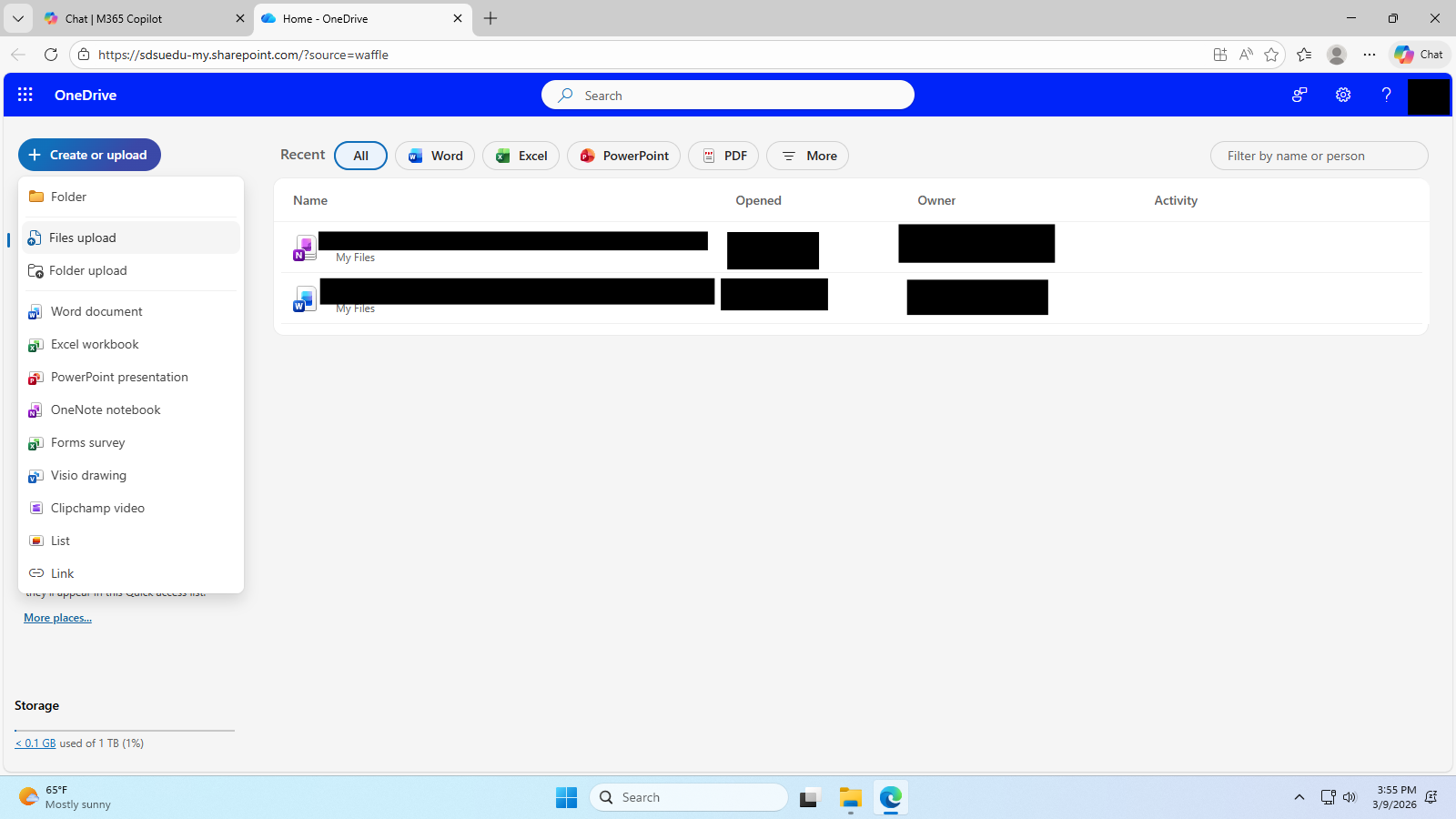
To share your files with your groupmates, you can use OneDrive’s share functionality.
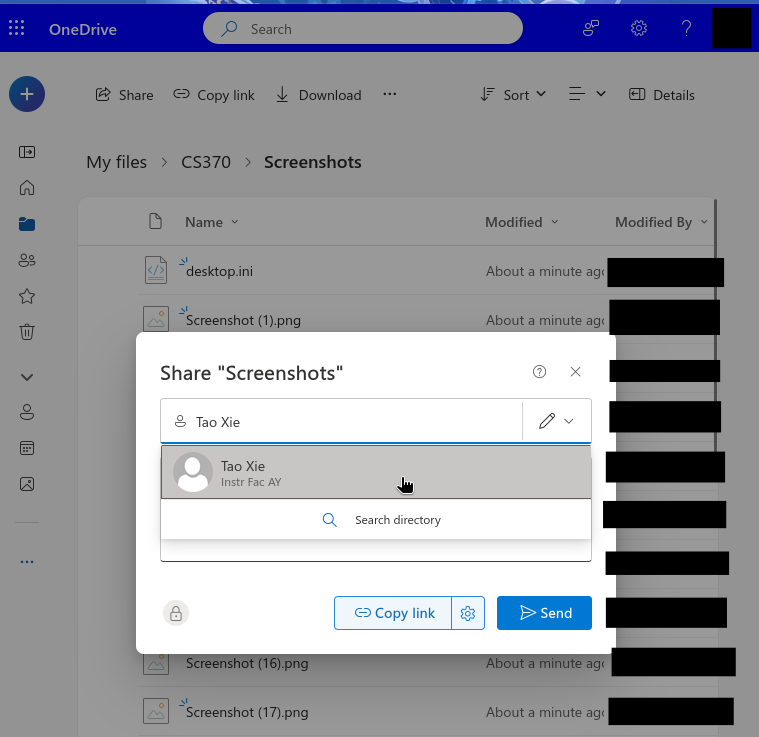
Sharing can be done with individuals. |
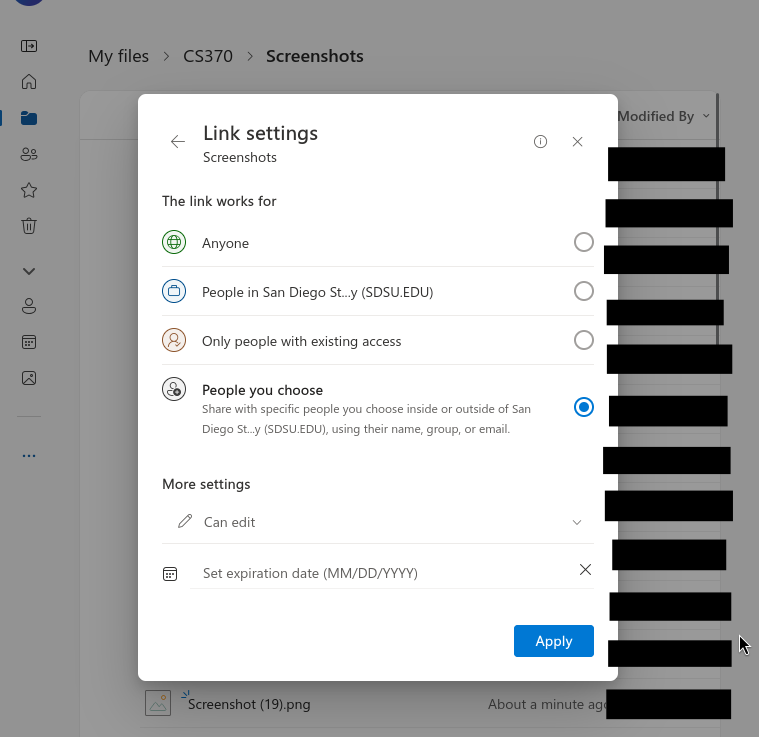
Sharing can also be done using a link. |
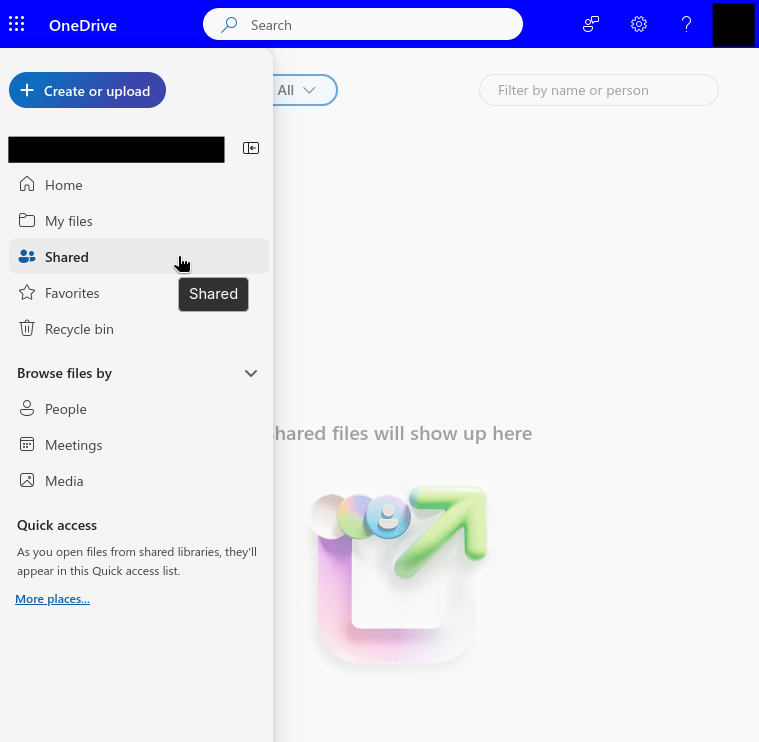
To view files shared by your groupmates, you can visit the “Shared” tab.